How to Turn a Twitch VOD Into TikTok Clips (Step-by-Step)
6 min read
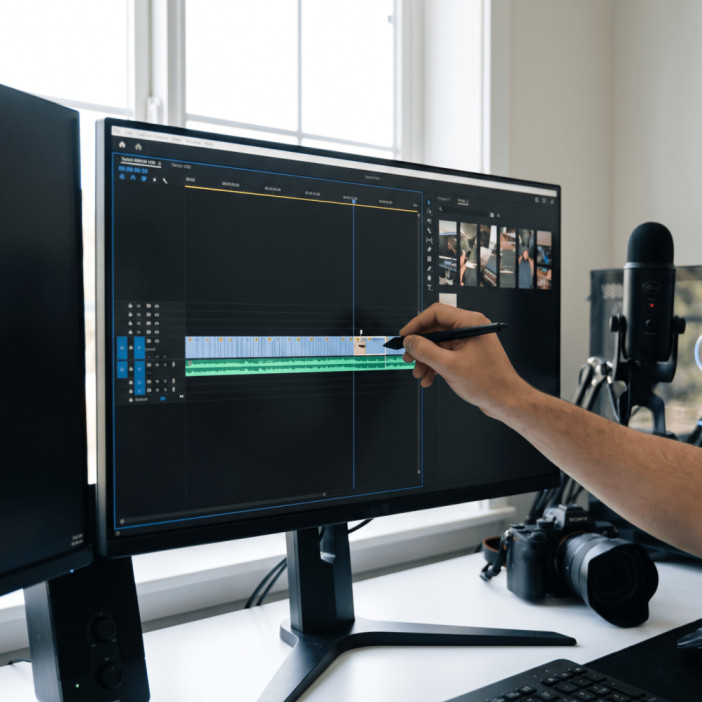
TL;DR: Complete this guide and you will pull high-performing clips from every stream, auto-reframe them to vertical format, and post them on a cadence that builds your audience. You will need a Twitch VOD (local file or download), a video editor or AI clipper, and a way to export vertical MP4s.
You stream on Twitch and want to grow. Short-form platforms like TikTok, Instagram Reels, and YouTube Shorts are where new viewers discover you fastest, especially when your Twitch audience is still small. The problem: your streams are long, and clipping them manually takes 1 to 2 hours per stream. This post walks you through the exact process to turn long VODs into TikTok clips that actually convert, whether you edit manually or use automation to speed things up.
What You Will Need
A Twitch VOD file (downloaded from Creator Dashboard or recorded locally via OBS)
A video editor (Adobe Premiere Pro, CapCut, DaVinci Resolve, or an AI clipper like VODJet)
A way to export MP4 files in 1080x1920 resolution (9:16 vertical format)
A TikTok account set up and ready to post
Access to your Twitch Creator Dashboard to download VODs if not recording locally
Step 1: Ensure Your VOD Is Saved and Accessible
Twitch doesn't keep VODs forever. Standard accounts get about 14 days; Partners get roughly 60 days. After that, the file disappears. Your first move: confirm your VOD is actually stored, then download it or record locally at higher quality to avoid the time pressure.
Open your Twitch Creator Dashboard, go to Settings, then Stream. Toggle on "Store past broadcasts" if it is not already on. This ensures every stream is saved. When you finish streaming, download the VOD from Content → Video Producer within 2 to 3 days to be safe. Or better: record locally using OBS or similar software at a higher bitrate than Twitch streams at. Local recordings give you better quality and zero dependence on Twitch's retention window. You drag your file directly into your editing setup without uploading anything to the cloud first.
Step 2: Identify Moments Worth Clipping
Your VOD might be 3, 4, or 5 hours. Only a fraction of that turns into good short-form content. The fastest way to find that fraction is to skim the VOD at 2x or 3x speed, dropping timestamps on anything that feels like a moment: a clutch play, a failed attempt, a laugh, a reaction, a chat explosion, or a shift in tone. In my experience, a 3-hour stream typically yields 8 to 15 clips if you're being selective.
What makes a clip work on TikTok? It needs a hook in the first 1 to 2 seconds, something that makes a thumb stop scrolling. A jump scare, a surprising outcome, a laugh, intensity, a weird reaction. The clip should stand alone without requiring backstory. And it needs a payoff: the punchline lands, the play completes, the moment resolves. If a clip is confusing without 10 minutes of context, it will not perform.
Step 3: Reframe Your Clip Into Vertical Format
Twitch streams are 16:9 horizontal. TikTok demands 9:16 vertical (1080x1920). Most editors let you create a new vertical sequence and place your 16:9 footage inside it. Scale the video so the facecam and gameplay stay in frame and centered on the phone screen. Many streamers auto-stack gameplay and facecam so the stacked layout feels intentional rather than cropped.
If you're using AI tools, this step happens automatically. You paste the VOD URL, the tool analyzes it, surfaces candidate clips, and exports them already framed for TikTok. That's where the time saving kicks in: without spending hours editing manually, you get ready-to-post clips in minutes instead. Tools like VODJet run locally on Windows, so your files never leave your PC during processing. No monthly credits, no re-uploading massive VODs to the cloud. You buy once and clip as much as you want.
Step 4: Add Captions and Export
Most TikTok viewers watch with sound off. Captions are not optional. Generate auto-captions from your editor or AI tool, then clean up any misspelled gamer tags, slang, or non-English words. Use bold, high-contrast text and keep it away from the TikTok UI (the username and buttons on the right side of the screen). Subtle zoom effects or color pulses on key words work, but do not overdo motion. The moment itself should stay in focus.
Export at 1080x1920, MP4 format, H.264 codec, matching your source frame rate (usually 30 or 60 fps). Aim for clips between 15 and 30 seconds for broad appeal; you can stretch to 60 seconds if the moment truly earns it. These settings prevent needless transcoding and keep the clip looking sharp on mobile.
Step 5: Post on a Schedule, Not All at Once
Do not drop 10 clips from the same stream on the same day. Post 1 to 2 per day. A 3-hour stream with 12 clips feeds your TikTok for a full week. This cadence keeps your profile active and gives the algorithm room to surface multiple pieces. Mix clip types: gameplay highlight, funny reaction, storytime, clutch moment. Variety holds attention and tests what resonates with your audience.
Upload natively within TikTok, not a repost from another platform. Choose a strong cover frame that shows the impact moment. Write a light caption with a hook and maybe a soft call to action inviting viewers to catch you live on Twitch. Because here's the truth: the tool does not go viral for you. Posting often is what turns streams into followers. Posting often is realistic when you remove the editing bottleneck. You turn long VODs into ready-to-post clips instead of spending days in an editor.
Common Mistakes to Avoid
First: waiting too long to clip. VODs expire. Download or record locally immediately after streaming, especially if you are not a Twitch Partner. Second: clipping moments that require too much context. If the punchline makes no sense without 5 minutes of setup, it will not work as a 30-second clip. Third: ignoring your audio. Automated captions save time, but gamer tags and slang still need manual review. A single misspelled username makes your clip look sloppy. Finally, posting all clips at once floods your own feed and wastes the distribution potential of spreading that content across a week.
Frequently Asked Questions
Can I clip a live stream while it's still happening?
No, not directly from the live feed. Wait for the VOD to appear in your Creator Dashboard, then download or record the replay. Some tools can clip from live streams in real time, but the VOD approach is simpler and more reliable.
How many clips should I expect from a single stream?
Usually 8 to 15, depending on how active your content is. A gameplay heavy stream with big moments yields more. A slower, more conversational stream yields fewer. Quality over quantity always wins.
Do I need expensive editing software?
No. CapCut is free and handles vertical formatting and captions easily. If you want to automate most of the work, AI clipping tools remove the editing step entirely and export ready-to-post clips in minutes.
What if I don't have a facecam?
Gameplay alone works fine for TikTok. Center the gameplay, add captions, and ensure the action is crisp. Many gaming clips perform without a facecam visible.
Should I post the same clip across all platforms?
You can, but optimize each export for the platform. TikTok is 9:16. Instagram Reels can be 9:16 or 4:5. YouTube Shorts is 9:16. Exporting once at 9:16 works for all three, but native uploads perform better than cross-posted content.
Start Clipping This Week
Pick your last 3-hour VOD, download it, and spend 30 minutes finding 10 strong moments. Reframe one clip to vertical, add captions, and post it tomorrow. Notice how much faster the process becomes when you are not scrubbing through hours of footage in an editor. Your goal is not perfection on the first clip. It is removing the time barrier so you can post often enough to grow. Once you nail the workflow, consider an AI clipper to cut that 30 minutes down to 5. You will still have clipping work, but it becomes something you do between streams instead of a full-day editing session that eats time you should be streaming or resting.
twitch vod clippingtiktok short-form contentvideo editing workflowstreamer growth strategyvertical video formatting